




If you’re planning to turn your knowledge into a profitable online course, chances are your first thought was: “I need to create videos… but what tools do I actually need?”
This is where most new creators get overwhelmed. Do you need a fancy camera? Do you need expensive software? Do you need a full studio? And which video course creator tools are actually worth using?
The good news is that creating a professional video course in 2026 is easier than ever, and you don’t need Hollywood equipment or a production team. Today’s video course creator tools can help you plan, record, edit, host, and publish your videos with almost no technical experience.
In this comprehensive guide, we’ll break down the best tools for every stage of the video course creation process. Whether you’re teaching fitness, design, marketing, coding, cooking, photography, or anything in between, you’ll learn exactly which tools to use and how each one fits into your workflow.
What Is a “Video Course Creator” Tool?
A video course creator tool is any software or platform that helps you create, edit, design, host, or deliver your video-based online course.
These tools typically help with:
- Recording your lessons
- Editing your videos
- Adding captions, music, and visuals
- Designing slides and teaching materials
- Hosting your course securely
- Selling your course to your audience
- Tracking student progress
Some tools handle ONE part of the creation process (like editing), while others handle EVERYTHING (like all-in-one course platforms).
To make this easy, we’ll break video course creator tools into five categories:
- Video recording tools
- Video editing tools
- Course slide creation tools
- AI video creation tools
- Course hosting platforms
This way, you know exactly what you need depending on your workflow.
Best Video Course Creator Tools for Recording
Recording your lessons is the first step. Whether you want to record yourself, your screen, or both, these tools make it simple.
Loom
Best for: Screen recording, quick tutorials, walkthroughs
Loom is perfect if your course is heavy on screen-sharing or software demonstrations. It’s fast, clean, and doesn’t require advanced production skills.
Why creators use Loom
- One-click screen + webcam recording
- Automatic cloud storage
- Easy trimming
- Quick sharing
- Very beginner-friendly
You can export your videos and upload them into your course platform later.
OBS Studio
Best for: Advanced screen recording and streaming
OBS is free and extremely powerful. It’s great for instructors who need:
- High-definition recording
- Multiple camera angles
- Multiple audio sources
- Custom scenes for presentations
It has a steeper learning curve, but it’s a favorite for creators who want flexibility.
Your Smartphone Camera
Best for: Talking-head video lessons, fitness, cooking, lifestyle courses
Modern smartphones can record crisp, high-quality videos. With the right lighting and mic, your phone becomes a pro-level camera.
Why it works
- Affordable
- Easy to set up
- Works with a tripod
- Perfect for beginners
Your phone paired with a ring light is all many video course creators ever need.
DSLR or Mirrorless Cameras (Optional Upgrade)
If you want cinematic quality, tools like:
- Sony A6400
- Canon M50 Mark II
- Panasonic Lumix G7
give you a professional look, but they aren’t required for most course creators.
Best Video Course Creator Tools for Editing
Editing is where your lessons go from raw footage to polished, student-ready content. Here are the best tools depending on your skill level.
CapCut (Beginner-Friendly)
Best for: Quick editing with modern templates
CapCut is free, simple, and powerful, even for longer course videos.
Key features
- Drag-and-drop editing
- Auto-captions
- Transitions
- Color correction
- Royalty-free music
- Text overlays
Perfect for beginners creating courses with talking-head videos.
Descript
Best for: Text-based editing (edit your video like a document)
Descript is extremely popular among educators because it transcribes your video and lets you edit by deleting or rewriting text.
What makes it great
- Overdub AI voice
- Fill-word removal (“um,” “uh”)
- Automatic subtitles
- Audio cleanup
- Screen recording
- Video templates
It’s one of the easiest tools for creators who want fast editing with minimal effort.
iMovie / Windows Video Editor
Simple, free, built-in editors perfect for beginner creators who want:
- Trimming
- Cutting
- Basic transitions
- Basic audio adjustments
Great for getting your course launched without spending money.
Final Cut Pro or Adobe Premiere Pro
Best for: Advanced editing, premium-quality courses
If you want:
- Multiple camera setups
- Advanced color grading
- Motion graphics
- Smooth transitions
- Professional sound
These tools give you full control, ideal for high-priced or studio-quality courses.
Best Video Course Creator Tools for Slide Presentation
Many online course creators use slides for lessons. These tools help you create beautiful, professional teaching materials.
Canva
Best for: Beautiful slides without a designer
Canva gives you:
- Course slide templates
- Video templates
- Stock images
- Icons
- Animations
- Brand kits
You can build your teaching slides and export them as videos or use them during screen recordings.
Google Slides / PowerPoint
Great for:
- Traditional teaching
- Academic-style lessons
- Corporate training
These are reliable and easy to use, and students respond well to clean, structured slides.
Keynote
Apple’s slide tool offers:
- Smooth transitions
- Minimalist layouts
- Beautiful typography
Many creators prefer Keynote for polished presentations.
Best AI Video Course Creator Tools
With AI advancements, you can now create video lessons faster than ever, sometimes without recording anything yourself.
Synthesia
Best for: AI avatar video lessons
Synthesia lets you:
- Create a virtual instructor
- Paste your script and generate video
- Translate into 120+ languages
Great for:
- Corporate training
- Compliance training
- Multi-language courses
HeyGen
Another powerful AI video creator.
Why creators use HeyGen
- Realistic avatars
- Lip-syncing
- Instant video generation
- Multi-scene editing
Perfect for creators who don’t want to appear on camera.
Pictory
Best for: Turning text or webinars into course videos
Upload:
- Blog posts
- Zoom recordings
- Scripts
- Transcripts
Pictory generates:
- Edited videos
- Reels
- Short lessons
- Auto-captions
Perfect for repurposing content into a video course.
Lumina AI
Helps enhance camera quality in real-time:
- Auto lighting
- Auto background features
- Portrait mode
- Cleanup filters
Makes you look “studio-ready” without equipment.
Best Video Course Creator Tools for Hosting & Selling Your Course
Once your video lessons are ready, you need a platform to host them and sell access to your course.
These are the best options.
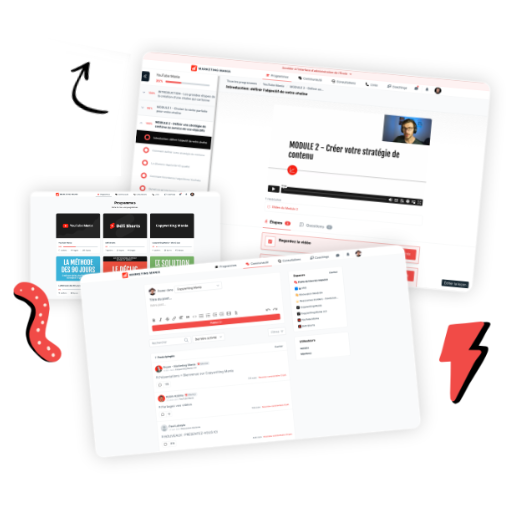
SchoolMaker
Best for: Providing excellent student experience and improving learner success
Why SchoolMaker is popular
- Affordable pricing
- Easy to use course builder
- AI features
- Community, coaching and consultation features
- Quizzes & certificates
- No transaction fees
If you want your students to get the best learning experience, SchoolMaker is the best choice.
Thinkific
Best for: Hosting full structured video courses, with strong student experience
Why Thinkific is popular
- Drag-and-drop course builder
- AI course creator
- Video hosting included
- Communities
- Quizzes & certificates
- Website builder
- No transaction fees
- Great analytics
If you’re creating a video-heavy course, Thinkific handles everything smoothly.
Teachable
Best for: Easy setup and simple course businesses
Strengths
- Fast publishing
- Unlimited video hosting
- Simple interface
- Solid payment system (Teachable Payments)
- Coaching options
Beginners love Teachable because it’s friction-free.
Kajabi
Best for: All-in-one business + email + funnel + course platform
Why creators choose Kajabi
- Email marketing built-in
- Landing pages
- Funnels (“Pipelines”)
- Memberships
- Video courses
If you want everything in one place, Kajabi is unmatched.
Podia
Best for: Budget-friendly video course hosting
Podia offers:
- Courses
- Digital downloads
- Webinars
- Community
All at a very accessible price.
WordPress + LearnDash
Best for: Full control, self-hosted courses
Great for creators who want:
- Custom design
- Advanced features
- SCORM compliance
- Plugin flexibility
More setup required, but extremely powerful.
Which Video Course Creator Tools Do You Actually Need?
It depends on the type of course you’re creating.
Here is a simple cheat sheet:
If you're creating a screen-recorded course
Use:
- Loom or OBS for recording
- Descript for editing
- Canva for slides
- SchoolMaker, Thinkific or Teachable for hosting
If you’re creating a talking-head video course
Use:
- Your phone or DSLR
- CapCut or Final Cut Pro
- Lapel mic
- Softbox or ring light
- SchoolMaker, Kajabi, or Teachable for hosting
If you want to create a course without being on camera
Use:
- Synthesia or HeyGen for AI avatar videos
- Canva for slides
- Pictory for text-to-video
- SchoolMaker for structured delivery
How to Choose the Best Video Course Creator Tools
Here’s how to make the right choices without getting overwhelmed.
1. Decide on your course style
Ask:
- Am I showing my face?
- Screen sharing?
- Using slides?
- Using AI avatars?
Your style determines your tools.
2. Determine your budget
You can spend:
- $0 (using free tools)
- Under $50/month
- Premium options ($150+/month)
There’s a tool for every budget.
3. Choose tools that are easy for you
You don’t need advanced software if a simple app does the job.
4. Start small and upgrade later
Your first course doesn’t need perfect production.
5. Choose a hosting platform before you edit everything
SchoolMaker, Thinkific, Teachable, Kajabi, Podia each handle video differently.
Common Mistakes New Video Course Creators Make
Many first-time creators overcomplicate things.
Here are mistakes to avoid:
Buying expensive equipment too early
Your smartphone + good lighting is enough.
Over-editing every video
Students care about clarity, not Hollywood effects.
Recording without a script
Rambling ruins engagement.
Filming before planning your course structure
Outline first → record after.
Ignoring audio quality
Bad sound makes students stop watching.
Trying to learn every tool
Pick 2–4 tools and stay consistent.
Recommended Starter Setup for First-Time Video Course Creators
Here’s a simple, affordable setup that creates professional results:
Video: Your smartphone (1080p or 4K)
Audio: Lavalier mic ($25–$60)
Lighting: Ring light or softbox ($20–$50)
Recording software: Loom or OBS (free)
Editing: CapCut or Descript (free or low-cost)
Hosting: SchoolMaker
This setup is enough to create a beautiful, effective video course.
Conclusion
Becoming a video course creator is easier, faster, and more accessible than ever. You don’t need a studio. You don’t need a massive budget. You don’t need perfect equipment.
What you do need is:
- The right tools
- A clear teaching structure
- A platform to host your course
- And the confidence to start recording
Once you have the basics in place, the rest becomes a repeatable workflow. The tools in this guide allow you to record lessons, edit videos, design slides, generate AI content, host your course, and sell it to students anywhere in the world.


